---
title: Client UI component - Entry and NumericEntry
description: How to set up Entry and NumericEntry components in Client UI
---
[Skip to content](https://kb.bxsoftware.no/en/hjelp/client-ui-komponent-entry-og-numericentry#main-content)
- [English](https://kb.bxsoftware.no/en/hjelp/client-ui-komponent-entry-og-numericentry)
- [Norsk – Norge](https://kb.bxsoftware.no/hjelp/client-ui-komponent-entry)
English
Show submenu for translations
[](https://www.bxlogistics.no/)
- [Henvendelser](https://kb.bxsoftware.no/tickets)
- [Selvhjelp](https://kb.bxsoftware.no/hjelp)
- [Logg ut](https://kb.bxsoftware.no/_hcms/mem/logout)
Open main navigation
Close main navigation
- [Henvendelser](https://kb.bxsoftware.no/tickets)
- [Selvhjelp](https://kb.bxsoftware.no/hjelp)
- [Logg ut](https://kb.bxsoftware.no/_hcms/mem/logout)
- - [English](https://kb.bxsoftware.no/en/hjelp/client-ui-komponent-entry-og-numericentry)
- [Norsk – Norge](https://kb.bxsoftware.no/hjelp/client-ui-komponent-entry)
English
Show submenu for translations
How can we help you?
- There are no suggestions because the search field is empty.
1. [Selvhjelp](https://kb.bxsoftware.no/en/hjelp?hsLang=en)
2. [Technical Documentation](https://kb.bxsoftware.no/en/hjelp/technical-documentation?hsLang=en)
3. [BxAdmin - Client UI](https://kb.bxsoftware.no/en/hjelp/technical-documentation?hsLang=en#bxadmin-client-ui)
# Client UI component - Entry and NumericEntry
## How to set up Entry and NumericEntry components in Client UI
The entry and numericentry components can be used to add extra input fields in various modules within BxMobile. This is typically done to include additional information in an order within the ERP system. To achieve this, configurations must be made in **Client UI, Export to ERP**, and in some cases, **SQL integration**.
1. [Client UI](https://kb.bxsoftware.no/en/hjelp/client-ui-komponent-entry-og-numericentry#clientui)
2. [Export to ERP](https://kb.bxsoftware.no/en/hjelp/client-ui-komponent-entry-og-numericentry#exporttoerp)
3. [SQL Integration (optional)](https://kb.bxsoftware.no/en/hjelp/client-ui-komponent-entry-og-numericentry#sqlintegration)
4. [BxMobile](https://kb.bxsoftware.no/en/hjelp/client-ui-komponent-entry-og-numericentry#bxmobile)
#### 1. Client UI
In BxAdmin, under the Client UI section:
1. Click **Add** to create a new field.
2. Enter the correct **Screen name** (**[see reference list](https://kb.bxsoftware.no/hjelp/client-ui-felt-oversikt?hsLang=en)**). In this case, use **PickingList**.
3. Enter the **Field Name**.
4. Click **Confirm** when finished.

#### Field Configuration
Once the field is added, adjust the remaining columns:
| **Screen** | Pre-filled when the field was added; can be adjusted if needed. For this setup, **PickingList and** **PickingMenu** are correct. |
| --- | --- |
| **Name** | Field name, e.g., **Linje**/**tallinfo.** |
| **Enabled** | `true` (enabled by default, can be toggled on/off). |
| **Source Field** | Fields to pull data from (e.g., `information` and `numberinformation`). |
| **Visible** | `true` (ensures the field is shown). |
| **X-pos** | `1` (places the field on the far left of the screen). |
| **Y-pos** | `4` and `5` (places the fields in lines 4 and 5 on the screen). |
| **Width** | `3` (covers the entire screen width). |
| **Height** | Not relevant. |
| **Component** | `entry` and `numericentry` |
| **Label** | `"Info"` and `"Numbers"` (names shown in the UI; should be concise and fill within the column width). |

#### Prefix for Source Fields
- If the field should **send or retrieve information** from an order line/item line, prefix the **Source Field** with `lines`.
- If the field should display a **header value** in the **Pick** or **Recieve** module, no prefix is needed.
- You can also assign the field to a specific profile if multiple profiles exist, ensuring that only the relevant users can see the field.
#### 2. Export to ERP
In the **Export to ERP** section:
1. Select the correct **export type** related to the module the fields are set up for. In this case, select **pickinglist create**.
2. This setup is integrated with **VismaNet**, so the **destination fields** will differ if configured for another ERP system.
3. Ensure that the **Source Field** includes the `lines` prefix (as defined in the **Client UI** setup).
4. Enable **Ignore Zero** to prevent sending empty data when the field is not filled in.

#### 3. SQL Integration (optional)
SQL Integration is **not required** if the fields are only meant to **add** data to an order from the terminals. Skip this step if it is not relevant.
However, if data retrieval is necessary:
- The **Info** and **Numbers** fields should be added to the **order line query** as `information` and `numberinformation`.
- In this example, the information is **hardcoded** directly into the query. For real use cases, retrieve the desired fields dynamically to fetch the correct data.

#### 4. BxMobile
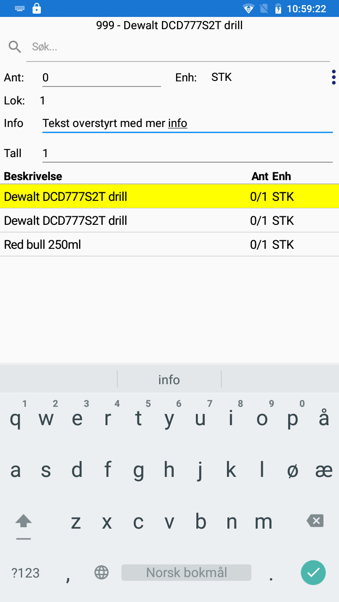
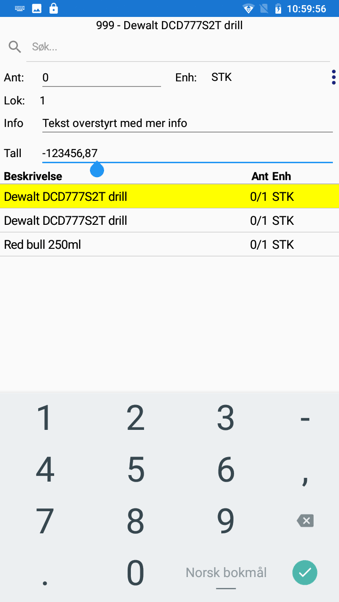
Once everything is correctly configured in **BxAdmin**, and settings/data (depending on the module) are synchronized with **BxMobile**, the fields should appear in the UI as expected.
- [BxLogistics Installation](https://kb.bxsoftware.no/en/hjelp/bxlogistics-installation?hsLang=en#main-content)
- [BxEngine and BxSmartPrintPro](https://kb.bxsoftware.no/en/hjelp/bxlogistics-installation?hsLang=en#bxengine-and-bxsmartprintpro)
- [BxLogistics](https://kb.bxsoftware.no/en/hjelp/bxlogistics-installation?hsLang=en#bxlogistics)
- [ERP Integrations and setup](https://kb.bxsoftware.no/en/hjelp/erp-integrations-and-setup?hsLang=en#main-content)
- [Visma Business](https://kb.bxsoftware.no/en/hjelp/erp-integrations-and-setup?hsLang=en#visma-business)
- [VBNxt](https://kb.bxsoftware.no/en/hjelp/erp-integrations-and-setup?hsLang=en#vbnxt)
- [Visma Net](https://kb.bxsoftware.no/en/hjelp/erp-integrations-and-setup?hsLang=en#visma-net)
- [Xledger](https://kb.bxsoftware.no/en/hjelp/erp-integrations-and-setup?hsLang=en#xledger)
- [Transport integrations](https://kb.bxsoftware.no/en/hjelp/transport-integrations?hsLang=en#main-content)
- [AxiaFrakt](https://kb.bxsoftware.no/en/hjelp/transport-integrations?hsLang=en#axiafrakt)
- [Logistra Cargonizer](https://kb.bxsoftware.no/en/hjelp/transport-integrations?hsLang=en#logistra-cargonizer)
- [ERP delivery methods](https://kb.bxsoftware.no/en/hjelp/transport-integrations?hsLang=en#erp-delivery-methods)
- [nShift Shipment Server](https://kb.bxsoftware.no/en/hjelp/transport-integrations?hsLang=en#nshift-shipment-server)
- [nShift/Unifaun Online](https://kb.bxsoftware.no/en/hjelp/transport-integrations?hsLang=en#nshift-unifaun-online)
- [nShift/Consignor OnPrem](https://kb.bxsoftware.no/en/hjelp/transport-integrations?hsLang=en#nshift-consignor-onprem)
- [User guides BxMobile](https://kb.bxsoftware.no/en/hjelp/user-guides-bxmobile?hsLang=en#main-content)
- [General](https://kb.bxsoftware.no/en/hjelp/user-guides-bxmobile?hsLang=en#general)
- [Stock transfer](https://kb.bxsoftware.no/en/hjelp/user-guides-bxmobile?hsLang=en#stock-transfer)
- [Products](https://kb.bxsoftware.no/en/hjelp/user-guides-bxmobile?hsLang=en#products)
- [Picking](https://kb.bxsoftware.no/en/hjelp/user-guides-bxmobile?hsLang=en#picking)
- [Stock count](https://kb.bxsoftware.no/en/hjelp/user-guides-bxmobile?hsLang=en#stock-count)
- [User Guides BxWebManager](https://kb.bxsoftware.no/en/hjelp/user-guides-bxwebmanager?hsLang=en#main-content)
- [General](https://kb.bxsoftware.no/en/hjelp/user-guides-bxwebmanager?hsLang=en#general)
- [Labels](https://kb.bxsoftware.no/en/hjelp/user-guides-bxwebmanager?hsLang=en#labels)
- [Technical Documentation](https://kb.bxsoftware.no/en/hjelp/technical-documentation?hsLang=en#main-content)
- [BxAdmin - Client UI](https://kb.bxsoftware.no/en/hjelp/technical-documentation?hsLang=en#bxadmin-client-ui)
- [BxSmartPrintPro](https://kb.bxsoftware.no/en/hjelp/technical-documentation?hsLang=en#bxsmartprintpro)
- [Picking - Freight booking](https://kb.bxsoftware.no/en/hjelp/technical-documentation?hsLang=en#picking-freight-booking)
- [Infrastructure](https://kb.bxsoftware.no/en/hjelp/technical-documentation?hsLang=en#infrastructure)
- [Visma Global specific](https://kb.bxsoftware.no/en/hjelp/technical-documentation?hsLang=en#visma-global-specific)
- [Visma Business specific](https://kb.bxsoftware.no/en/hjelp/technical-documentation?hsLang=en#visma-business-specific)
- [VismaNet specific](https://kb.bxsoftware.no/en/hjelp/technical-documentation?hsLang=en#vismanet-specific)
- [Stock count](https://kb.bxsoftware.no/en/hjelp/stock-count?hsLang=en#main-content)
- [Visma Net](https://kb.bxsoftware.no/en/hjelp/stock-count?hsLang=en#visma-net)
- [Logistics](https://kb.bxsoftware.no/en/hjelp/logistics?hsLang=en#main-content)
- [Location](https://kb.bxsoftware.no/en/hjelp/logistics?hsLang=en#location)
- [Troubleshooting](https://kb.bxsoftware.no/en/hjelp/troubleshooting?hsLang=en#main-content)
- [Freight](https://kb.bxsoftware.no/en/hjelp/troubleshooting?hsLang=en#freight)
- [Visma Net](https://kb.bxsoftware.no/en/hjelp/troubleshooting?hsLang=en#visma-net)
- [BxMobile](https://kb.bxsoftware.no/en/hjelp/troubleshooting?hsLang=en#bxmobile)
- [BxSmartPrintPro](https://kb.bxsoftware.no/en/hjelp/troubleshooting?hsLang=en#bxsmartprintpro)
- [Visma Business](https://kb.bxsoftware.no/en/hjelp/troubleshooting?hsLang=en#visma-business)
- [BxAdmin](https://kb.bxsoftware.no/en/hjelp/troubleshooting?hsLang=en#bxadmin)
- [BxAPI](https://kb.bxsoftware.no/en/hjelp/bxapi?hsLang=en)
- [Video archive](https://kb.bxsoftware.no/en/hjelp/video-archive?hsLang=en#main-content)
- [Sales](https://kb.bxsoftware.no/en/hjelp/video-archive?hsLang=en#sales)
- [Stock pick](https://kb.bxsoftware.no/en/hjelp/video-archive?hsLang=en#stock-pick)
- [Stock count](https://kb.bxsoftware.no/en/hjelp/video-archive?hsLang=en#stock-count)
- [General](https://kb.bxsoftware.no/en/hjelp/video-archive?hsLang=en#general)
- [BxWebManager](https://kb.bxsoftware.no/en/hjelp/video-archive?hsLang=en#bxwebmanager)
[](https://www.bxlogistics.no/)
Karihaugveien 89, Oslo, Norway
[mailto:support@bxsoftware.no](mailto:support@bxsoftware.no)
Copyright © 2025, BxSoftware AS