---
title: Client UI component - combobox
description: How to set up the combobox component in Client UI
---
[Skip to content](https://kb.bxsoftware.no/en/hjelp/client-ui-komponent-combobox#main-content)
- [English](https://kb.bxsoftware.no/en/hjelp/client-ui-komponent-combobox)
- [Norsk – Norge](https://kb.bxsoftware.no/hjelp/client-ui-komponent-combobox)
English
Show submenu for translations
[](https://www.bxlogistics.no/)
- [Henvendelser](https://kb.bxsoftware.no/tickets)
- [Selvhjelp](https://kb.bxsoftware.no/hjelp)
- [Logg ut](https://kb.bxsoftware.no/_hcms/mem/logout)
Open main navigation
Close main navigation
- [Henvendelser](https://kb.bxsoftware.no/tickets)
- [Selvhjelp](https://kb.bxsoftware.no/hjelp)
- [Logg ut](https://kb.bxsoftware.no/_hcms/mem/logout)
- - [English](https://kb.bxsoftware.no/en/hjelp/client-ui-komponent-combobox)
- [Norsk – Norge](https://kb.bxsoftware.no/hjelp/client-ui-komponent-combobox)
English
Show submenu for translations
How can we help you?
- There are no suggestions because the search field is empty.
1. [Selvhjelp](https://kb.bxsoftware.no/en/hjelp?hsLang=en)
2. [Technical Documentation](https://kb.bxsoftware.no/en/hjelp/technical-documentation?hsLang=en)
3. [BxAdmin - Client UI](https://kb.bxsoftware.no/en/hjelp/technical-documentation?hsLang=en#bxadmin-client-ui)
# Client UI component - combobox
## How to set up the combobox component in Client UI
If you need an additional field to select fixed values to send to your ERP system, you can use the combobox component to create a dropdown menu with predefined values. This example is designed for the Picking module in BxMobile, but can be applied to most modules that support Client UI and where adding such a field is practical.
This setup requires configuration in five modules within BxAdmin. **SQL Integration, Configuration → Client Profiles, Export to ERP, Client UI** and **Language**. The order of configuration is not critical, but starting with **SQL Integration** is often easiest, as it provides a reference value that must be included in the other steps.
---
#### **SQL Integration**
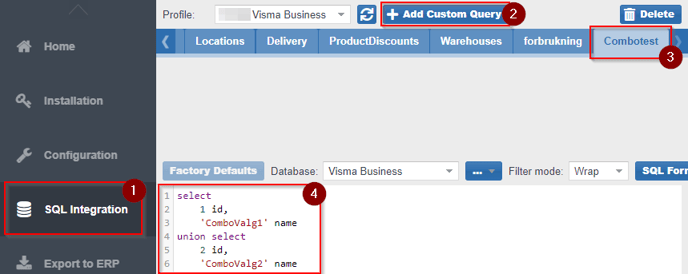
1. Create a new custom query in **SQL Integration** and give it a name. In this example we are calling it "Combotest".
2. The query must contain two columns: `id` and `name`. Values can be fetched fromERP tables/columns, or they can be hardcoded.
Here is an example with hardcoded values:
```
select 1 id, 'ComboValg1' nameunion select 2 id, 'ComboValg2' name
```
---
#### **Configuration → Client Profiles**
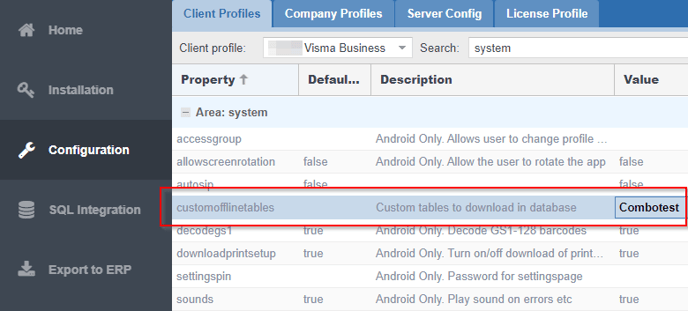
1. Under **Area: system**, locate **customofflinetables** and add the name of the query created in SQL Integration.
2. For this example, add "Combotest". This parameter allows us to download the values from the created query to the terminal.
3. To include multiple queries, separate them with commas (e.g., `Combotest`, `Combotest2`, `Combotest3` ).
---
#### Export to ERP
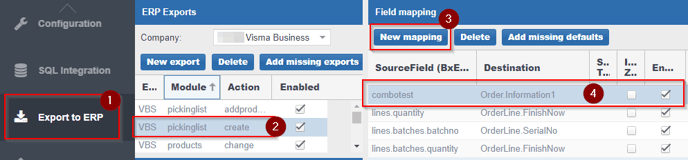
1. Select the appropriate module for this configuration.
2. Add a new mapping:
• **SourceField**: Use "Combotest" (or the query name).
• **Destination**: Map it to the desired field in the ERP system.
• Enable the mapping by selecting the **Enabled** checkbox.
3. Ensure the **SourceField** name matches what is defined in **Client UI**.
---
#### **Client UI**
| **Screen ** | Specify the "Combotest" screen, e.g., `PickingList`. |
| --- | --- |
| **Name** | Assign a descriptive name like "Combotest". Alternatively, overwrite an existing field (e.g., "Batchno") if unused, ensuring its position and width match. |
| **Enabled** | Yes. |
| **SourceObject** | "Combotest" (query name from the SQL Integration). |
| **SourceField** | "Combotest" (sourcefield name from Export to ERP). To send the query `id` by default, use `combotest`. To send the `name` instead, use `combotestname`. |
| **Visible** | Yes (optional, but recommended). |
| **X-Position** | Define the column (1 is typical). Avoid 2 or 3 unless replacing an existing field like "Batchno". |
| **Y-Position** | Define the row. For this example, use 3. |
| **Width** | Set the width. Use 3 for full screen width. |
| **Component** | Select "Combobox". |
| **Label text** | Use a short label like "Comb:" (limited to 4-5 characters).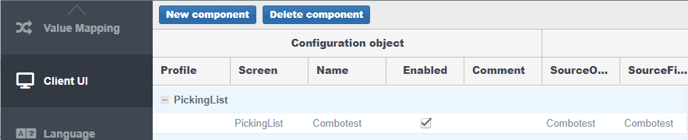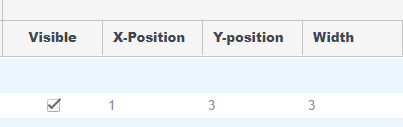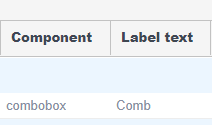 |
#### Language
Adding translations is optional, but useful for clarity.
Go to **Language** in BxAdmin, click **Add**, and configure:
- **Phrase ID**: Use the query name (e.g., "Combotest").
- **Translation**: Define the display text, such as "Combotester". On the terminal, this will show as: "Combotester received".
Example of what this looks like
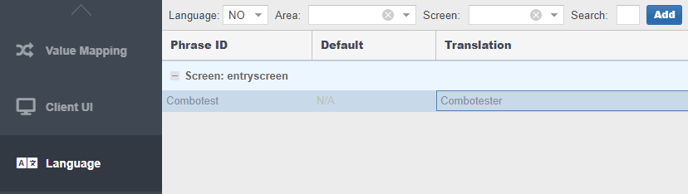
Copy the configuration code below, adjust the values, and paste it (CTRL+C, CTRL+V) in Language in BxAdmin - Combotest must be adjusted after textid and text before saving in BxAdmin.
```
[{"id":3972,"language":"no","routine":"general","screen":"entryscreen","textid":"combotest","text":"Combotester"}]
```
#### BxMobile
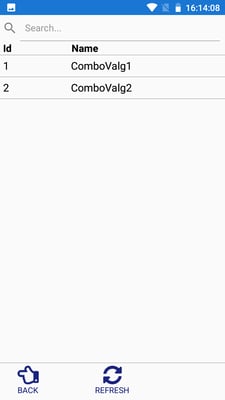
In BxMobile, refresh the data and download the settings. The resulting dropdown will now be displayed and functional.
- [BxLogistics Installation](https://kb.bxsoftware.no/en/hjelp/bxlogistics-installation?hsLang=en#main-content)
- [BxEngine and BxSmartPrintPro](https://kb.bxsoftware.no/en/hjelp/bxlogistics-installation?hsLang=en#bxengine-and-bxsmartprintpro)
- [BxLogistics](https://kb.bxsoftware.no/en/hjelp/bxlogistics-installation?hsLang=en#bxlogistics)
- [ERP Integrations and setup](https://kb.bxsoftware.no/en/hjelp/erp-integrations-and-setup?hsLang=en#main-content)
- [Visma Business](https://kb.bxsoftware.no/en/hjelp/erp-integrations-and-setup?hsLang=en#visma-business)
- [VBNxt](https://kb.bxsoftware.no/en/hjelp/erp-integrations-and-setup?hsLang=en#vbnxt)
- [Visma Net](https://kb.bxsoftware.no/en/hjelp/erp-integrations-and-setup?hsLang=en#visma-net)
- [Xledger](https://kb.bxsoftware.no/en/hjelp/erp-integrations-and-setup?hsLang=en#xledger)
- [Transport integrations](https://kb.bxsoftware.no/en/hjelp/transport-integrations?hsLang=en#main-content)
- [AxiaFrakt](https://kb.bxsoftware.no/en/hjelp/transport-integrations?hsLang=en#axiafrakt)
- [Logistra Cargonizer](https://kb.bxsoftware.no/en/hjelp/transport-integrations?hsLang=en#logistra-cargonizer)
- [ERP delivery methods](https://kb.bxsoftware.no/en/hjelp/transport-integrations?hsLang=en#erp-delivery-methods)
- [nShift Shipment Server](https://kb.bxsoftware.no/en/hjelp/transport-integrations?hsLang=en#nshift-shipment-server)
- [nShift/Unifaun Online](https://kb.bxsoftware.no/en/hjelp/transport-integrations?hsLang=en#nshift-unifaun-online)
- [nShift/Consignor OnPrem](https://kb.bxsoftware.no/en/hjelp/transport-integrations?hsLang=en#nshift-consignor-onprem)
- [User guides BxMobile](https://kb.bxsoftware.no/en/hjelp/user-guides-bxmobile?hsLang=en#main-content)
- [General](https://kb.bxsoftware.no/en/hjelp/user-guides-bxmobile?hsLang=en#general)
- [Stock transfer](https://kb.bxsoftware.no/en/hjelp/user-guides-bxmobile?hsLang=en#stock-transfer)
- [Products](https://kb.bxsoftware.no/en/hjelp/user-guides-bxmobile?hsLang=en#products)
- [Stock count](https://kb.bxsoftware.no/en/hjelp/user-guides-bxmobile?hsLang=en#stock-count)
- [User Guides BxWebManager](https://kb.bxsoftware.no/en/hjelp/user-guides-bxwebmanager?hsLang=en#main-content)
- [General](https://kb.bxsoftware.no/en/hjelp/user-guides-bxwebmanager?hsLang=en#general)
- [Labels](https://kb.bxsoftware.no/en/hjelp/user-guides-bxwebmanager?hsLang=en#labels)
- [Technical Documentation](https://kb.bxsoftware.no/en/hjelp/technical-documentation?hsLang=en#main-content)
- [BxAdmin - Client UI](https://kb.bxsoftware.no/en/hjelp/technical-documentation?hsLang=en#bxadmin-client-ui)
- [BxSmartPrintPro](https://kb.bxsoftware.no/en/hjelp/technical-documentation?hsLang=en#bxsmartprintpro)
- [Picking - Freight booking](https://kb.bxsoftware.no/en/hjelp/technical-documentation?hsLang=en#picking-freight-booking)
- [Infrastructure](https://kb.bxsoftware.no/en/hjelp/technical-documentation?hsLang=en#infrastructure)
- [Visma Global specific](https://kb.bxsoftware.no/en/hjelp/technical-documentation?hsLang=en#visma-global-specific)
- [Visma Business specific](https://kb.bxsoftware.no/en/hjelp/technical-documentation?hsLang=en#visma-business-specific)
- [VismaNet specific](https://kb.bxsoftware.no/en/hjelp/technical-documentation?hsLang=en#vismanet-specific)
- [Stock count](https://kb.bxsoftware.no/en/hjelp/stock-count?hsLang=en#main-content)
- [Visma Net](https://kb.bxsoftware.no/en/hjelp/stock-count?hsLang=en#visma-net)
- [Logistics](https://kb.bxsoftware.no/en/hjelp/logistics?hsLang=en#main-content)
- [Location](https://kb.bxsoftware.no/en/hjelp/logistics?hsLang=en#location)
- [Troubleshooting](https://kb.bxsoftware.no/en/hjelp/troubleshooting?hsLang=en#main-content)
- [Freight](https://kb.bxsoftware.no/en/hjelp/troubleshooting?hsLang=en#freight)
- [Visma Net](https://kb.bxsoftware.no/en/hjelp/troubleshooting?hsLang=en#visma-net)
- [BxMobile](https://kb.bxsoftware.no/en/hjelp/troubleshooting?hsLang=en#bxmobile)
- [BxSmartPrintPro](https://kb.bxsoftware.no/en/hjelp/troubleshooting?hsLang=en#bxsmartprintpro)
- [Visma Business](https://kb.bxsoftware.no/en/hjelp/troubleshooting?hsLang=en#visma-business)
- [BxAdmin](https://kb.bxsoftware.no/en/hjelp/troubleshooting?hsLang=en#bxadmin)
- [BxAPI](https://kb.bxsoftware.no/en/hjelp/bxapi?hsLang=en)
- [Video archive](https://kb.bxsoftware.no/en/hjelp/video-archive?hsLang=en#main-content)
- [Sales](https://kb.bxsoftware.no/en/hjelp/video-archive?hsLang=en#sales)
- [Stock pick](https://kb.bxsoftware.no/en/hjelp/video-archive?hsLang=en#stock-pick)
- [Stock count](https://kb.bxsoftware.no/en/hjelp/video-archive?hsLang=en#stock-count)
- [General](https://kb.bxsoftware.no/en/hjelp/video-archive?hsLang=en#general)
- [BxWebManager](https://kb.bxsoftware.no/en/hjelp/video-archive?hsLang=en#bxwebmanager)
[](https://www.bxlogistics.no/)
Karihaugveien 89, Oslo, Norway
[mailto:support@bxsoftware.no](mailto:support@bxsoftware.no)
Copyright © 2025, BxSoftware AS